This blog has been set-up as part of St. Albert Public Library's Learning 2.0 project to encourage staff to experiment and learn about the new and emerging technologies that are reshaping the context of information on the Internet today. As we experienced in our Staff Development Day presentations, technology is changing at a rapid pace and we as information professionals need to keep up with our customers.
The goals of Learning 2.0 are really simple – you should explore, play, and have fun. Seriously, that’s all. There are no grades, there are no quizzes and participation is voluntary - increasing your awareness is accomplishment enough. Feel free to work with a team or buddy - you're not in this alone! You are encouraged to work with staff who are not in your department. We’ll even give you help when you need it (in person, on the phone or via email) and you'll be eligible for a reward for completing the program. Who are your resources? Will, Sheri, Shelley, and Kathleen are all officially here to help you, but ask anyone on staff, there is a lot of untapped expertise hiding out there.
This learning project was originally developed by Helene Blowers, Director for the Public Library of Charlotte & Mecklenburg County and is being used under the Creative Commons licensing agreement. We are very grateful for the opportunity to borrow from and recreate this wonderful program.
Monday, 2 July 2007
#1 Welcome to Learning 2.0

#2 Why Web 2.0 Matters
Among libraries, lifelong learning is one of those core values we shelve our books by. So it makes sense that we move with the times and spend some time with the social web.
Why are we so interested in web 2.0 or the social web? Will it really impact us in our daily lives?
Discovery Exercise
Why are we so interested in web 2.0 or the social web? Will it really impact us in our daily lives?
Discovery Exercise
- Watch this video and think about the ramifications of technology on your everyday existance. Make sure you have sound (and you can use those headphones you got at Staff Development Day!)
- Write down your thoughts on why life long learning has to include web 2.0, or why not! You will post these thoughts on the blog you will be creating in the next exercise.
#3 Get Blogging
Now that you’ve done some exploring around this website and understand how this program will work, it’s time to setup your very own personal blog to begin recording your thoughts, discoveries and exercises in. If you really don't know what a blog is, take a look at the screen you are reading. This blog was set up as an instructional tool. A blog or weblog is really a just an online journal where you can post, or publish, information. For this program, we recommend that you use Blogger*, a popular free online blog hosting service that is extremely easy to use.
Creating a blog using Blogger takes just three steps:
Once you’ve created your blog here are two important things to know:
If you run into problems or would like more information about blogs and using Blogger here are some discovery resources you can use:
OK -- Now, it’s your turn...
Discovery Exercise:
Creating a blog using Blogger takes just three steps:
- Create an account (view screenshot)
- Name your blog (view screenshot)
- Select your template. (view screenshot)
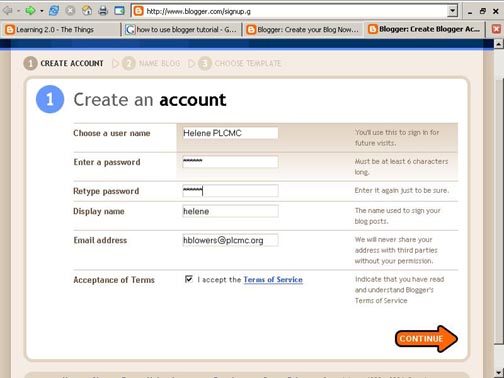
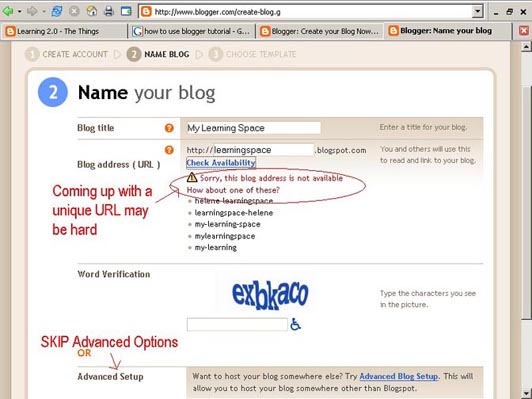
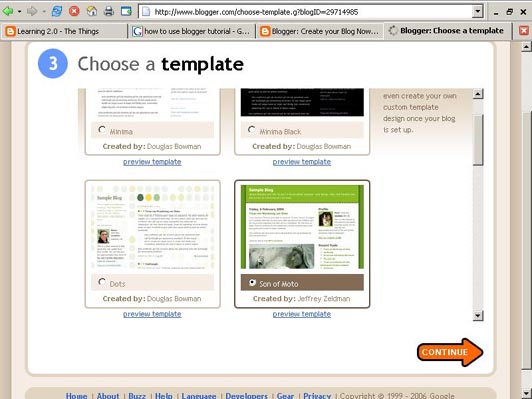
Once you’ve created your blog here are two important things to know:
- To add posts: The maintenance interface that you will use to add posts, edit or change the step-up your blog is accessed online at http://www.blogger.com Be sure to write down your login and password.
- To view your blog: Your blog address is http://(xxxx).blogspot.com, (xxxx)=the unique identifier you entered in Step 2. Be sure to also write down your blog address.
If you run into problems or would like more information about blogs and using Blogger here are some discovery resources you can use:
- Freevlog’s Quicktime Tutorial: Setup a Free Blogger Blog Note: Ignore the opening comments about downloading Firefox if your PC doesn’t have it. This will work in Explorer just fine.
- Blogger’s Quick Tutorial
OK -- Now, it’s your turn...
Discovery Exercise:
- Setup a blog for yourself through Blogger.
- Add a test post or two. Maybe you want to talk about your experience so far.
- Have fun!!!!
#4 Register Your Blog and Tell a Friend
You've made it this far, now share the fun! In order to qualify for the prize draws, you need to track your progress. We have set up a spreadseet on our local shared drive for everyone to use. You can access it from any computer in the library. It is located at
S:\23 Things Tracker
Just open the spreadsheet and add you name to the list. As you move along, mark off the items you have completed. Remember, it isn't a race or a competition. You have lots of time to work at your own speed. Questions? Ask a training buddy or resource person for help.
S:\23 Things Tracker
Just open the spreadsheet and add you name to the list. As you move along, mark off the items you have completed. Remember, it isn't a race or a competition. You have lots of time to work at your own speed. Questions? Ask a training buddy or resource person for help.
#5 Learn About Wikis
So, what's in a wiki? A wiki is a collaborative website and authoring tool that allows users to easily add, remove and edit content. Wikipedia, the online open-community encyclopedia, is the largest and perhaps the most well known of these knowledge sharing tools. With the benefits that wikis provide the use and popularity of these tools is exploding.
Some of the benefits that make wikis so attractive are:
As the use of wikis has grown over the last few years, libraries all over the country have begun to use them to collaborate and share knowledge. Among their applications are pathfinder or subject guide wikis, book review wikis, conference wikis and even library best practices wikis.
Discovery Resources:
Use these resources to learn more aboout wikis:
Some of the benefits that make wikis so attractive are:
- Anyone (registered or unregistered, if unrestricted) can add, edit or delete content.
- Tracking tools within wikis allow you to easily keep up on what been changed and by whom.
- Earlier versions of a page can be viewed and reinstated when needed.
- And users do not need to know HTML in order to apply styles to text or add and edit content. In most cases simple syntax structure is used.
As the use of wikis has grown over the last few years, libraries all over the country have begun to use them to collaborate and share knowledge. Among their applications are pathfinder or subject guide wikis, book review wikis, conference wikis and even library best practices wikis.
Discovery Resources:
Use these resources to learn more aboout wikis:
- Wiki’s: A Beginner’s Look – an excellent short slide presentation that offers a short introduction and examples.
- What is a Wiki? – Library Success wiki presentation
- Using Wikis to Create Online Communities – a good overview of what a wiki is and how it can be used in libraries.
- For this discovery exercise, you are asked to take a look at some library wikis and blog about your finding. Here’s a few examples to get you started:
- SJCPL Subject Guides – a pathfinder wiki developed by the St. Joseph County Public Library system
- Book Lovers Wiki - developed by the Princeton Public Library
- Library Success: A best practices wiki
- The Bull Run Library wiki - a public library wiki and also a Learning 2.0 participant
- SJCPL Subject Guides – a pathfinder wiki developed by the St. Joseph County Public Library system
- Create a blog post about your findings. What did you find interesting? What types of applications within libraries might work well with a wiki?
#6 Play with PBWiki
Nope, PBWiki isn't owned by our Peter Bailey. In fact it stands for Peanut Butter. Now that you have seen what wikis are all about, its time to try your hand at authoring in a wiki. St. Albert Public Library has set up a wiki for the purposes of this learning exercise. You will not be creating your own wiki, just adding to the existing one.
Discovery Resources:
Discovery Exercise:
1. Log into the SAPL Staff Wiki and add your post to the Favourites page located on the sidebar on the right side of the page. Favourite what you ask? Let fellow staff know your favourite recipe, song, vacation spot or shoe designer! The possibilities are endless. You will need a password to log into the wiki, so please turn over your instruction sheet. You will find it on the back.
2. Create a blog post about your experiences with wikis. How could we use wikis here at St. Albert Public Library?
Discovery Resources:
- PB Wiki Tour - Find out how this collaborative tool can be used
- PBWiki Video Gallery - Short videos of PBwiki features
- PB Wiki Tips
Discovery Exercise:
1. Log into the SAPL Staff Wiki and add your post to the Favourites page located on the sidebar on the right side of the page. Favourite what you ask? Let fellow staff know your favourite recipe, song, vacation spot or shoe designer! The possibilities are endless. You will need a password to log into the wiki, so please turn over your instruction sheet. You will find it on the back.
2. Create a blog post about your experiences with wikis. How could we use wikis here at St. Albert Public Library?
#7 Be a Video Voyager on YouTube
YouTube has become a videocasting phenomenon. Even local news stations use YouTube clips in their broadcasts. It is likely that someone you know has sent you a link to a clip. YouTube is Everyman's site for video self expression. Libraries have been using it as a place for promotional video, instructional video as well as a showcase for services and programs. This week you will spend some time checking out what is on offer in the world of self published video.
Do some searching around YouTube yourself and see what the site has to offer. You'll be amazed at what you can find. There is everything from a recipe for stuffed summer squash and vintage Sesame Street to Dwight Yoakam singing "I Want You to Want Me. Of course, like any free site you’ll also find a lot stuff not worth watching too. But that doesn’t mean you shouldn’t explore and see for yourself what the site has too offer. Check out the categories link or search for the obscure, it's all in there.
Discovery Exercise:
Do some searching around YouTube yourself and see what the site has to offer. You'll be amazed at what you can find. There is everything from a recipe for stuffed summer squash and vintage Sesame Street to Dwight Yoakam singing "I Want You to Want Me. Of course, like any free site you’ll also find a lot stuff not worth watching too. But that doesn’t mean you shouldn’t explore and see for yourself what the site has too offer. Check out the categories link or search for the obscure, it's all in there.
Discovery Exercise:
- Explore YouTube & find a video worth adding as an entry in your blog. If you find one you would like to import to your blog, you need to copy the "EMBED" text, not the URL. The EMBED text is actually html and will make the video show up on your own blog rather than just a link.
- Create a blog post about your experience. What did you like or dislike about the site and why did you choose the video that you did? Can you see any features or components of the site that might be interesting if they were applied to library websites?
#8 Podcasts Aren't Just for Kids
But I dont' have an iPod you say. No worries, the word podcast is used to refer to a non-musical audio or video broadcast that is distributed over the Internet. What differentiates a podcast from regular streaming audio or video is that the delivery method for podcasts is often done automatically through RSS.
In 2005, "podcast" was named the "word of the year" by New Oxford American Dictionary and with the growth of podcasting it's easy to see why.
Podcasts take many forms, from short 1-10 minutes commentaries to much longer in person interviews or panel group discussions. There’s a podcast out there for just about every interest area and the best part about this technology is that you don’t have to have an iPod or a MP3 player to access them. Since podcasts use the MP3 file format, a popular compressed format for audio files, you really just need a PC (or portal device) with headphones or a speaker.
iTunes, the free downloadable application created by Apple is the directory finding service most associated with podcasts, but if you don’t have iTunes installed there are still plenty of options. iTunes is loaded on all of the computers in the training lab if you want to try it out.
For this discovery exercise participants are asked to take a look at some popular podcast directory tools. Do some exploring on your own and locate a podcast that is of interest to you.
Discovery Resources:
Discovery Exercise:
OPTIONAL
In 2005, "podcast" was named the "word of the year" by New Oxford American Dictionary and with the growth of podcasting it's easy to see why.
Podcasts take many forms, from short 1-10 minutes commentaries to much longer in person interviews or panel group discussions. There’s a podcast out there for just about every interest area and the best part about this technology is that you don’t have to have an iPod or a MP3 player to access them. Since podcasts use the MP3 file format, a popular compressed format for audio files, you really just need a PC (or portal device) with headphones or a speaker.
iTunes, the free downloadable application created by Apple is the directory finding service most associated with podcasts, but if you don’t have iTunes installed there are still plenty of options. iTunes is loaded on all of the computers in the training lab if you want to try it out.
For this discovery exercise participants are asked to take a look at some popular podcast directory tools. Do some exploring on your own and locate a podcast that is of interest to you.
Discovery Resources:
- In the spirit of the ongoing evolution of the internet, the nice tutorial we have been using from Yahoo is gone. (As of October 31st) Yahoo Podcasts has been discontinued so we will make use of Wikipedia for an overview of podcasting.
- There are many, many podcast directories and finding tools out there. Here are just three of the more popular ones that, unlike iTunes, don't require a software download:
Discovery Exercise:
- Take a look at one or two of the podcast directories listed and see if you can find a podcast that interests you. See if you can find some interesting library related podcasts here like book review podcasts or library news.
- Create a blog post about your discovery process. Did you find anything useful here?
OPTIONAL
- What? You want to learn how to be a podcaster too?
(Optional Resources for those who want to learn create podcasts)- Odeo’s Studio – online recording studio.
- Beginner's guide to Podcasts & Creating Podcasts
- How to podcast tutorial
- Odeo’s Studio – online recording studio.
#9 eAudiobooks are Here!
eAudiobooks quietly arrived in St. Albert in May. The records were seamlessly added to our catalogue. If you noticed an item that said "electronic resource" that is what it is.
Downloadable eAudiobooks is a service provided by Recorded Books which is available through the library’s subscription to NetLibrary.
To establish a NetLibrary account, you must first create your acocunt through the SAPL Website. But once you have a Netlibrary user name and password (I know, I know … you’re tired of user names and passwords) you can access NetLibrary directly and bypass the SAPL site.
For this discovery exercise, you merely need to familiarize yourself a bit with the structure of NetLibrary's Downloadable eAudiobooks site and get an idea of the types of titles you can find here. Take a look around and locate a few titles of interest. If you would like to try downloading to an MP3 player, the library has purchased three players for you to work with.
Discovery Resources:
Introduction to Netlibrary* - this 12 minute tutorial covers the downloading process for Netlibrary audiobooks using Windows Media Player 10. (be patient, it may take a few minutes to upload this for viewing) This tutorial was created by the original creators of 23 things so it does not show our library site, but it is still very useful.
Discovery Exercise:
Downloadable eAudiobooks is a service provided by Recorded Books which is available through the library’s subscription to NetLibrary.
To establish a NetLibrary account, you must first create your acocunt through the SAPL Website. But once you have a Netlibrary user name and password (I know, I know … you’re tired of user names and passwords) you can access NetLibrary directly and bypass the SAPL site.
For this discovery exercise, you merely need to familiarize yourself a bit with the structure of NetLibrary's Downloadable eAudiobooks site and get an idea of the types of titles you can find here. Take a look around and locate a few titles of interest. If you would like to try downloading to an MP3 player, the library has purchased three players for you to work with.
Discovery Resources:
Introduction to Netlibrary* - this 12 minute tutorial covers the downloading process for Netlibrary audiobooks using Windows Media Player 10. (be patient, it may take a few minutes to upload this for viewing) This tutorial was created by the original creators of 23 things so it does not show our library site, but it is still very useful.
Discovery Exercise:
- Establish a NetLibrary account for yourself by accessing Netlibrary through the SAPL site.
- Once you have an account created, you can access NetLibrary directly at http://netlibrary.com
- Click on the eAudiobooks link and explore some of the 1300 + titles.
- Create a blog post about your findings. Did you locate a title that you might want to try out and download once you have a player?
#10 Discover Flickr

Photo sharing websites have been around since the 90s, but it took a small startup site called Flickr to catapult the idea of “sharing” into a full blown online community. Within the past year, Flickr has become the fastest growing photo sharing site on the web and is known as one of the first websites to use keyword “tags” to create associations and connections between photos and users of the site.
For this discovery exercise, you are asked to take a good look at Flickr and discover what this site has to offer. Find out how tags work, what groups are, and all the neat things that people and other libraries are using Flickr for.
Discovery Resources:
- Flickr Learn More tour (6 steps)
- Mediamazine Flickr Tutorials
- Flickr: Popular tags
Interesting- Last 7 days - Flickr Services (3rd party applications & mashups)
and let’s not forget to look at some other libraries on Flickr
Discovery Exercise:
In this discovery exercise, you have two options…
- Take a good look around Flickr and discover an interesting image that you want to blog about. Be sure to include either a link to the image or, if you create a Flickr account, you can use Flickr's blogging tool to add the image in your post. Another option you have for including images in your post is to use Blogger's photo upload tool.
-- OR -- - If you're up to an easy challenge ... create a Free account in Flickr and use the Library's digital camera to capture a few pictures of something that interests you. Upload these to your Flickr account and tag at least one of the images "St. Albert Public Library" and mark it public. Then create a post in your blog about your photo and experience. Be sure to include the image in your post. Once you have a Flickr account, you have two options for doing this: through Flickr's blogging tool or using Blogger's photo upload feature.
So go ahead, explore the site and have some Flickr photo fun!
PS: A quick word about photo posting etiquette - When posting identifiable photos of other people (especially minors) is it advisable to get the person's permission before posting their photo in a publicly accessible place like Flickr. Never upload pictures that weren't taken by you (unless you have the photographer's consent) and always give credit when you include photos taken by someone else in your blog.
#11 Fun With Flickr
#6 More Flickr Fun

Like many web 2.0 sites, Flickr has encouraged other people to build their own online applications using images found on the site. Through the use of APIs (application programming interfaces), many people have created third party tools and mashups* that use Flickr images. Here are just a sampling of a few … ([Further note December 10th: This is no longer true. With the ever changing web world, wikipedia has been edited and the link isn't there any more. I left the info here because it just goes to show that the web changes much faster that we can keep u with!]Note October 30th: I just found out that someone put my husband's mashup onto the wikipedia site as an example! It is runningmap.com at the bottom of the page. You can acutally add your Flickr pictures to the maps you make as points of interest, so I guess it has a Flickr tie in as well.)
- Mappr - allows you to take Flickr images and paste them on a map
- Flickr Color Pickr - lets you find public photos in Flickr that match a specific color.
- Montagr – create a photo mosaic from photos found on Flickr.
Discovery Exercise:
Your discovery exercise for this “thing” is to:
- Explore some of the fun Flickr mashups and 3rd party tools that are out there.
- Create a blog post about one that intrigues you.
Personally one of my very favorite tools is FD Toys’ Trading Card Maker. And there’s a ton of librarians out there that have created their own Librarian Trading Card.
So have some fun discovering and exploring some neat little apps. And if you're up to the challenge while you’re at it, why not create a trading card of your own. :)
* Mashup Note: Wikipedia offers some great articles that explain mashups. Basically they are hybrid web applications that take features from one application (like Flickr) and mash it up with another (like a map). In this example, you get Mappr (http://mappr.com).
PS: Learning 2.0 image created by Spell with Flickr.
#12 Blog About Technology

This one is easy. Add a post to your blog talking about any aspect of technology. It might be about something you have learned so far, or maybe about something you are looking forward to learning. Don't forget to add a comment to another participant's blog, that's what online communities are all about!
You can find the blog addresses on the tracking sheet. Just visit their blog, read their posts, and click on the COMMENT label at the bottom of the post. You will probably be prompted to SIGN IN with your Google account info (the Username and Password you use when you blog). That is because the default comment setting doesn't let anonymous people (or computers) add spam comments to a blog, and that's a good thing.
You can even add a comment right here at the bottom of this post!
#13 Make your life "really simple" with RSS and a newsreader
 You’ve heard of RSS? You’ve seen those small funny tags on websites? You’ve heard co-workers and acquaintances swear by it, but still have no idea what RSS is? Well don’t worry, according to a recent survey you’re still in the majority, but this is changing rapidly. In the information world, RSS is not only revolutionalizing the way news, media and content creators share information, but it also is swiftly changing the way everyday users are consuming information.
RSS stands for “Really Simple Syndication” and is a file format for delivering regularly updated information over the web.
Just think about the websites and news information sources you visit every day. It takes time to visit those sites and scour the ad-filled and image-heavy pages for just the text you want to read, doesn’t it? Now imagine if you could visit all those information sources and web pages in just one place and all at the same time … without being bombarded with advertising… without having to search for new information on the page you’d already seen or read before… and without having to consume a lot of time visiting each site individually. Would that be valuable to you? Well, it’s available now through a newsreader and RSS.
This week’s discovery exercises focus on learning about RSS news feeds and setting up a Bloglines account (a free online newsreader) for yourself to bring your feeds together.
Discovery Resources:
- CNET Video: RSS – Feel the Need for Feeds (3:32) – a good over view of what RSS is and the benefits to users.
- Feed Me: A gentle introduction to Internet feeds - a good tutorial from Palinet, a library cooperative
- Using Bloglines Tutorial (how to keep up with dozens of blogs everyday) – This online tutorial walks you through how to setup a Bloglines account and add newsfeeds. Follow Steps 1 to 3 to set up your Bloglines account. Steps 4 – 9 are optional and cover how to subscribe to different types of feeds (podcasts, Flickr albums, etc)
- Adding RSS Feeds to Bloglines - A short YouTube video that was created showing how to add feeds.
- Additional Bloglines news feed subcription information (screenshot image)
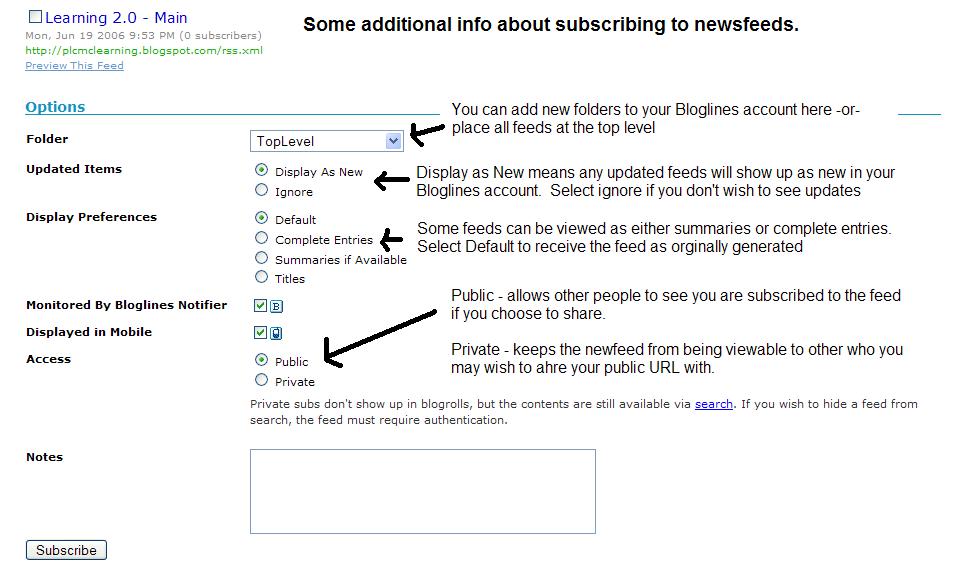
- Follow the discovery resources above to learn more about RSS and newsreaders.
- Create a free online Bloglines account for yourself and subscribe to at least 10 newsfeeds to your reader. See Using Bloglines Tutorial steps 1-3 for instructions.
Newsfeeds:- St Albert Public Library Blogs- Subscribe to several of your co-workers' feeds. This is as easy as typing the blog URL into the subscribe field in Bloglines. Try it, it's easy!
- Then try adding a few other types of news feeds from news sources and even SAPL's book clubs site. Here are a few suggestions:
- Pete's Picks - from our own Mr. Bailey
- Unshelved - a library themed comic strip
- CBC' list of feeds - whether it's news, sports, tech or arts there is lots to choose from
- St Albert Public Library Blogs- Subscribe to several of your co-workers' feeds. This is as easy as typing the blog URL into the subscribe field in Bloglines. Try it, it's easy!
- Create a post in your blog about this exercise.
Don’t know what to blog about? Think about these questions:
What do you like about RSS and newsreaders?
How do you think you might be able to use this technology in your work or personal life?
How can libraries use RSS or take advantage of this new technology?
#14 Finding RSS Feeds

Now that you have a newsreader (your Bloglines account), you can begin adding other newsfeeds that interest you. There are several ways you can locate newsfeeds:
- When visiting your favorite websites -- look for news feed icons that indicate the website provides it. Often a feed icon will be displayed somewhere in the navigation bar of the site.
The image at the top of the post shows many of the common icons.
- Use Blogline's Search tool - Bloglines recently expanded search tool lets you search for news feeds in addition to posts, citations and the web. Use the Search for Feeds option to locate RSS feeds you might be interested in.
- Other Search tools that can help you find feeds:
- Topix.net - This search tool allows you to locate recent newsfeed items based upon keyword or phrase searching. The tool focuses specifically on news and media outlet RSS feeds for information, not weblogs.
- Syndic8.com - Syndic8 is an open directory of RSS feeds that contains thousands of RSS feeds that users have submitted.
- Technorati - Technorati is a popular blog finding tool that lets you search for blogs. Since RSS feeds are inherent to all blogging tools, Technorati Blog Search can help you find RSS feeds for topic specific blogs you may be interested in.
Additonal Resource: Technorati Tutorial on finding and adding your blog
- Topix.net - This search tool allows you to locate recent newsfeed items based upon keyword or phrase searching. The tool focuses specifically on news and media outlet RSS feeds for information, not weblogs.
Discovery Excercise:
- Explore some of the search tools noted above that can help you locate some news feeds.
- Create a blog post about your experience. Don't know what to blog about? Here some questions to think about ... What search tool was the easiest? What was the most confusing? Did you find some things you did not expect to find? What other tools or ways did you find to locate feeds? Will you ever look at them again?
#15 Playing with Image Generators
Image generators? Are those related to emergency situations? No! but they do allow you to make fun images like these.
For this discovery exercise, I just want you to have fun. Find a few fun image or text generators to play around with and write a post in your blog about one of your favorites and display the result. Often adding the image you mocked up to your blog is as simple as copying and pasting code that the page provides. If not, you may just need to right click on the image and then save it to your hard drive before using Blogger’s image button to add it to your post.
If you’re having difficulty getting your image added to a post in your blog, ask a co-worker for help. In looking at several staff blogs, it’s easy to see that we have lots of people in the system who have figured out how easy it is to add images to their blogs.
Discovery Resources:
The Generator Blog
Letter James
FD Toys
Also try searching for online generators, text generators or image generators!
Discovery Exercise:
1. Play around with some image generators and find one that you like.
2. Post the result of your discovery process in your blog.
Note: Be sure to include a link to the image generator itself, so other participants can discover it too.
So take some time and have fun with this exercise. And remember, what goes on the web never really goes away!

For this discovery exercise, I just want you to have fun. Find a few fun image or text generators to play around with and write a post in your blog about one of your favorites and display the result. Often adding the image you mocked up to your blog is as simple as copying and pasting code that the page provides. If not, you may just need to right click on the image and then save it to your hard drive before using Blogger’s image button to add it to your post.
If you’re having difficulty getting your image added to a post in your blog, ask a co-worker for help. In looking at several staff blogs, it’s easy to see that we have lots of people in the system who have figured out how easy it is to add images to their blogs.
Discovery Resources:
The Generator Blog
Letter James
FD Toys
Also try searching for online generators, text generators or image generators!
Discovery Exercise:
1. Play around with some image generators and find one that you like.
2. Post the result of your discovery process in your blog.
Note: Be sure to include a link to the image generator itself, so other participants can discover it too.
So take some time and have fun with this exercise. And remember, what goes on the web never really goes away!
#16 Bring Out Your Inner Cataloguer on LibraryThing

As library people we all collect books in one way or another. LibraryThing is designed to help you keep track of your books. They may be your favourite books, or all the books you own or things that have been suggested by other people as things you must read. I use mine to keep track of things I know I want to read sometime, but haven't got time to look at right now which is always a long list!
So why not join the ranks and create your own library online. With
- Over 214,000 users signed up
- Over 14 million books cataloged
- Over 18 million tags applied by users to their books
Discovery Resources:
- About LibraryThing
- Library Thing tour
- If you want to catch up on the buzz LibraryThing has created, here is one article of many that have been talking about them.
Discovery Exercise:
1. Take a tour of LibraryThing to see what they have to offer.
2. Create an account and add some items to your virtual bookshelf.
3. Create a blog entry to talk about what you saw on LibraryThing and how it might be useful to you.
#17 Customize Your Own Search Engine
Do you have a group of websites that are your favorites, the ones you check on all the time? Or a set of online resources that are similar that you frequently use to answer reference questions? Well Rollyo may be the tool for you. Rollyo allows you to create your own search tool for just the websites you know and trust.
Take a look at some Searchrolls that have already been created:
Take a look at some Searchrolls that have already been created:
- Reference
- Author Biographies
- Recipes
- Explore other Searchrolls here
- Explore Rollyo and create an account for yourself.
- Create a search roll for any subject you like.
- Create a post in your blog about your experience and link to your search roll. You can find the place to do this under Tools on the black bar at the top. When you are signed in, you will see the Share tab which will list your searchrolls. There is a tiny button that says Link. When you click on it, the URL appears in the address bar of your browser. That is what you need to copy and paste in your blog. Can you see a potential use for tools like this?
#18 Isn't it Del.icio.us
Tagging is an open and informal method of categorizing that allows users to associate keywords with online content (webpages, pictures & posts). Unlike library subject cataloging, which follows a strict set of guidelines (i.e.Library of Congress subject headings), tagging is completely unstructured and freeform, allowing users to create connections between data anyway they want.
In the past sessions, we’ve already explored a few sites – Flicker and LibraryThing to name two --that allow users to take advantage of tagging. In this exercise we want to take a look at a popular social bookmarking site called Del.icio.us (typed in as http://del.icio.us).
Del.icio.us is a social bookmarking manager which allows you to bookmark a web page and add tags to categorize your bookmarks.
Many users find that the real power of Del.icio.us is in the social network aspect, which allows you to see how other users have tagged similar links and also discover other websites that may be of interest to you. You can think of it as peering into another users’ filing cabinet, but with this powerful bookmarking tool each user's filing cabinet helps to build an expansive knowledge network.
For this discovery exercise, you are asked to take a look at Del.icio.us and learn about this popular bookmarking tool.
Discovery Resources:
Discovery Exercise:
NOTE you don't have to create an account to do this exercise. It is optional.
OPTIONAL: If you’re up to the challenge, create a Del.icio.us account for yourself and discover how this useful bookmarking tool can replace your traditional browser bookmark list.
Note: If you do setup a Del.icio.us account, here’s a quick word about the Del.icio.us Buttons. On PCs that have the toolbars locked down, these will install as options in your browser bookmarks. Use the “Post to my Del.icio.us” link to add the current webpage to your account (you may need to log in). Use the “My Del.icio.us” link to view your online account.
In the past sessions, we’ve already explored a few sites – Flicker and LibraryThing to name two --that allow users to take advantage of tagging. In this exercise we want to take a look at a popular social bookmarking site called Del.icio.us (typed in as http://del.icio.us).
Del.icio.us is a social bookmarking manager which allows you to bookmark a web page and add tags to categorize your bookmarks.
Many users find that the real power of Del.icio.us is in the social network aspect, which allows you to see how other users have tagged similar links and also discover other websites that may be of interest to you. You can think of it as peering into another users’ filing cabinet, but with this powerful bookmarking tool each user's filing cabinet helps to build an expansive knowledge network.
For this discovery exercise, you are asked to take a look at Del.icio.us and learn about this popular bookmarking tool.
Discovery Resources:
Discovery Exercise:
NOTE you don't have to create an account to do this exercise. It is optional.
- Take a look around Del.icio.us using the St. Albert Public Library account that was created for this exercise. Note: In this account you will find some of the resources that have been highlighted or used throughout the course of the Learning 2.0 program.
- Explore the site options and try clicking on a bookmark that has also been bookmarked by a lot of other users. Can you see the comments they added about this bookmark or the tags that they used to categorize this reference?
- Create a blog post about your experience and thoughts about this tool.
Can you see the potential of this tool for research assistance? Or just as an easy way to create bookmarks that can be accessed from anywhere?
OPTIONAL: If you’re up to the challenge, create a Del.icio.us account for yourself and discover how this useful bookmarking tool can replace your traditional browser bookmark list.
Note: If you do setup a Del.icio.us account, here’s a quick word about the Del.icio.us Buttons. On PCs that have the toolbars locked down, these will install as options in your browser bookmarks. Use the “Post to my Del.icio.us” link to add the current webpage to your account (you may need to log in). Use the “My Del.icio.us” link to view your online account.
#19 Technorati

You might think Technorati would be something you find on an Italian lunch menu, but the only things on offer at this site are blogs. Technorati is the leading search tool and authority for blogs, the number of blogs doubles just about every 6 months with over 89.6 million blogs currently being tracked by the site. It' so fast that the entry I made 20 minutes ago about del.icio.us showed up in a search of "library 2.0" just now!
Yes, these numbers are astounding, but as you’ve already seen for yourselves, blogging is so easy that these publishing tools are being taken advantage of by almost every industry, including libraries. Technorati estimates that 175,000 new blogs are created every day!
So how does a person get their blog listed as part of the blogosphere and how can you tag your posts with keywords to make them more findable through a Technorati search? The answer to the first question is that your blog is probably already being captured by Technorati due to the fact that you're already using Blogger, the most popular blogging tool. But if you want to join the party and have your blog officially listed on Technorati and also take advantage of the watchlist and other features, you’ll need to claim your blog yourself. As for tagging posts with Technorati tags? This is easy, too. All you need to do is add a little bit of HTML code to the bottom of your post and Technorati will pick up these tags when it spiders (or web crawls) your site.
There are a lot of new features that have been added to Technorati in the recent past, including new ways to search for blogs. You can search for keywords in blog posts, search for entire blog posts that have been tagged with a certain keyword, or search for blogs that have been registered and tagged as whole blogs about a certain subject (like photography or libraries).
Discovery Resources:
Technorati Tour – videocast of new features & new look
Technorati Popular features
Discovery Exercise:
- Take a look at Technorati and try doing a keyword search for “Learning 2.0” in Blog posts, in tags and in the Blog Directory. Are the results different? Some of these searches are found in the Advanced Search feature.
- Explore popular blog, searches and tags. Is anything interesting or surprising in your results?
- Create a blog post about your discoveries on this site.
#20 Web 2.0, Library 2.0 and the Future
Library 2.0 is term used to describe a new set of concepts for developing and delivering library services. The name, as you may guess, is an extension of Web2.0 and shares many of its same philosophies and concepts including harnessing the user in both design and implementation of services, embracing constant change as a development cycle over the traditional notion of upgrades, and reworking library services to meet the users in their space, as opposed to ours (libraries).
Many have argued that the notion of Library 2.0 is more than just a term used to describe concepts that merely revolve around the use of technology; it also a term that can be used to describe both physical and mindset changes that are occurring within libraries to make our spaces and services more user-centric and inviting. Others within the profession have asserted that libraries have always been 2.0: collaborative, customer friendly and welcoming. But no matter which side of the debate proponents fall, both sides agree that libraries of tomorrow, even five or ten years from now, will look substantially different from libraries today.
Discovery Resources:
OCLC Next Space Newsletter – Web 2.0: Where will the next generation of the web it take libraries?
Five Perspectives:
Wikipedia – Library 2.0
Library 2.0 Discussions (list of great references from Wikipedia)
Discovery Exercise:
Many have argued that the notion of Library 2.0 is more than just a term used to describe concepts that merely revolve around the use of technology; it also a term that can be used to describe both physical and mindset changes that are occurring within libraries to make our spaces and services more user-centric and inviting. Others within the profession have asserted that libraries have always been 2.0: collaborative, customer friendly and welcoming. But no matter which side of the debate proponents fall, both sides agree that libraries of tomorrow, even five or ten years from now, will look substantially different from libraries today.
Discovery Resources:
OCLC Next Space Newsletter – Web 2.0: Where will the next generation of the web it take libraries?
Five Perspectives:
- Away from Icebergs
- Into a new world of librarianship
- To more powerful ways to cooperate
- To better bibliographic services
- To a temporary place in time
Wikipedia – Library 2.0
Library 2.0 Discussions (list of great references from Wikipedia)
Discovery Exercise:
- Read two or three of the perspectives on Library 2.0 from the list above.
- Create a blog post about your thoughts on any one of these? Library 2.0 - It's many things to many people. What does it mean to you?
#21 Online Productivity Tools
Sometimes the sheer number of social web options become exhausting to think about. We barely have time to keep up with the work we have, let alone "play" with all these web 2.0 tools. But there is much more out there.
The availability and use of online productivity web-based applications (think word processing and spreadsheets) has exploded over the past two years and for good reasons! These powerful applications provide users with the ability to create and share documents over the internet without the need of installed desktop applications. Some experts speculate that this emerging trend may mean the death to Microsoft Office and other software-based productivity tools, while others think web-based applications have their place, but not in the office. But no matter which side of the office suite platform you side with, on this both sides seem to agree; web-based apps have their place.
One large benefit to web-based applications it that they eliminate the need to worry about different software versions or file types as you email documents or move from PC to PC. Another bonus is that they easy accommodate collaboration by allowing multiple users to edit the same file (with versioning) and provide users the ability to easily save and convert documents as multiple file types (including HTML and pdf). And, you can even use many of these tools, such as Zoho Writer and Google Docs* (formerly known as Writely) to author and publish posts to your blog. It’s this type of integration with other web 2.0 tools that also makes web-based apps so appealing.
For this discovery exercise, participants are asked to take a look at a web-based word processing tool called Zoho Writer, create a simple document and then document your discoveries in your blog. If you're up to the challenge, you might even export your document as an HTML file or publish it through Zoho to your blog.

With Zoho and web-based applications, the possibilities are endless.
Discovery Resources:
A short list of web-based productivity applications
Discovery Exercise:
NOTE: You do not have to create an account for this exercise. It is optional.
The availability and use of online productivity web-based applications (think word processing and spreadsheets) has exploded over the past two years and for good reasons! These powerful applications provide users with the ability to create and share documents over the internet without the need of installed desktop applications. Some experts speculate that this emerging trend may mean the death to Microsoft Office and other software-based productivity tools, while others think web-based applications have their place, but not in the office. But no matter which side of the office suite platform you side with, on this both sides seem to agree; web-based apps have their place.
One large benefit to web-based applications it that they eliminate the need to worry about different software versions or file types as you email documents or move from PC to PC. Another bonus is that they easy accommodate collaboration by allowing multiple users to edit the same file (with versioning) and provide users the ability to easily save and convert documents as multiple file types (including HTML and pdf). And, you can even use many of these tools, such as Zoho Writer and Google Docs* (formerly known as Writely) to author and publish posts to your blog. It’s this type of integration with other web 2.0 tools that also makes web-based apps so appealing.
For this discovery exercise, participants are asked to take a look at a web-based word processing tool called Zoho Writer, create a simple document and then document your discoveries in your blog. If you're up to the challenge, you might even export your document as an HTML file or publish it through Zoho to your blog.

With Zoho and web-based applications, the possibilities are endless.
Discovery Resources:
A short list of web-based productivity applications
Discovery Exercise:
NOTE: You do not have to create an account for this exercise. It is optional.
- Create a sample document using "Quick Create" link in the bottom left corner of the Zoho Writer page. If you feel like you need another account, log in for a free account for yourself.
- Explore the site and create a few test documents.
- Try out Zoho Writer’s features and create a blog post about your discoveries.
#22 And the Award Goes To
Throughout the course of this Learning 2.0 program we’ve explored just a small sampling of these new internet technologies and websites that are empowering users with the ability to create and share content. But given time there are so many more we could explore. Current estimates place the number of web 2.0 tools at somewhere between 300 & 500 with only a handful emerging as market dominators. And although time will only tell which of these new collaborative, social networking and information tools will remain on top, one
thing is for sure, they're not going to go away (at least anytime soon).
For this discovery exercise, participants are asked to select any site from this list of Web 2.0 Awards nominees and explore it. With so many to choose from, it might be handy to first select a category that interests you (like Books or Personal Organization) and then simply select a tool/site to explore. Be careful to select a tool that is Free and that doesn't require a plug-in or download. The majority of these free, so this shouldn’t be a problem.
Discovery Exercise:
thing is for sure, they're not going to go away (at least anytime soon).
For this discovery exercise, participants are asked to select any site from this list of Web 2.0 Awards nominees and explore it. With so many to choose from, it might be handy to first select a category that interests you (like Books or Personal Organization) and then simply select a tool/site to explore. Be careful to select a tool that is Free and that doesn't require a plug-in or download. The majority of these free, so this shouldn’t be a problem.
Discovery Exercise:
- Select any site/tool from the list of Web 2.0 Awards nominees. (If you prefer to select from just the winners, here’s a link to the short list.)
- Explore the site you selected.
- Create a post about your discovery. What did you like or dislike about the tool? What were the site’s useful features? Could you see any applications for its use in a library setting?
#23 The End!

Wow! Congratulations!! You’ve reached the 23rd thing. Be sure to give yourself a pat on the back for completing the program. The rewards are many: personal development, sharing your discoveries with your coworkers and, of course, getting into the draw for prizes! But before the celebrations, we ask for one last discovery post.
For your final exercise for this program please reflect on your learning journey and post a few thoughts. Here are some questions to prompt you if you're drawing a blank ...
- What were your favorite discoveries or exercises on this learning journey?
- How has this program assisted or affected your lifelong learning goals?
- Were there any take-aways or unexpected outcomes from this program that surprised you?
- What could we do differently to improve upon this program’s format or concept?
And last but not least… - If we offered another discovery program like this in the future, would you again chose to participate?
Subscribe to:
Posts (Atom)